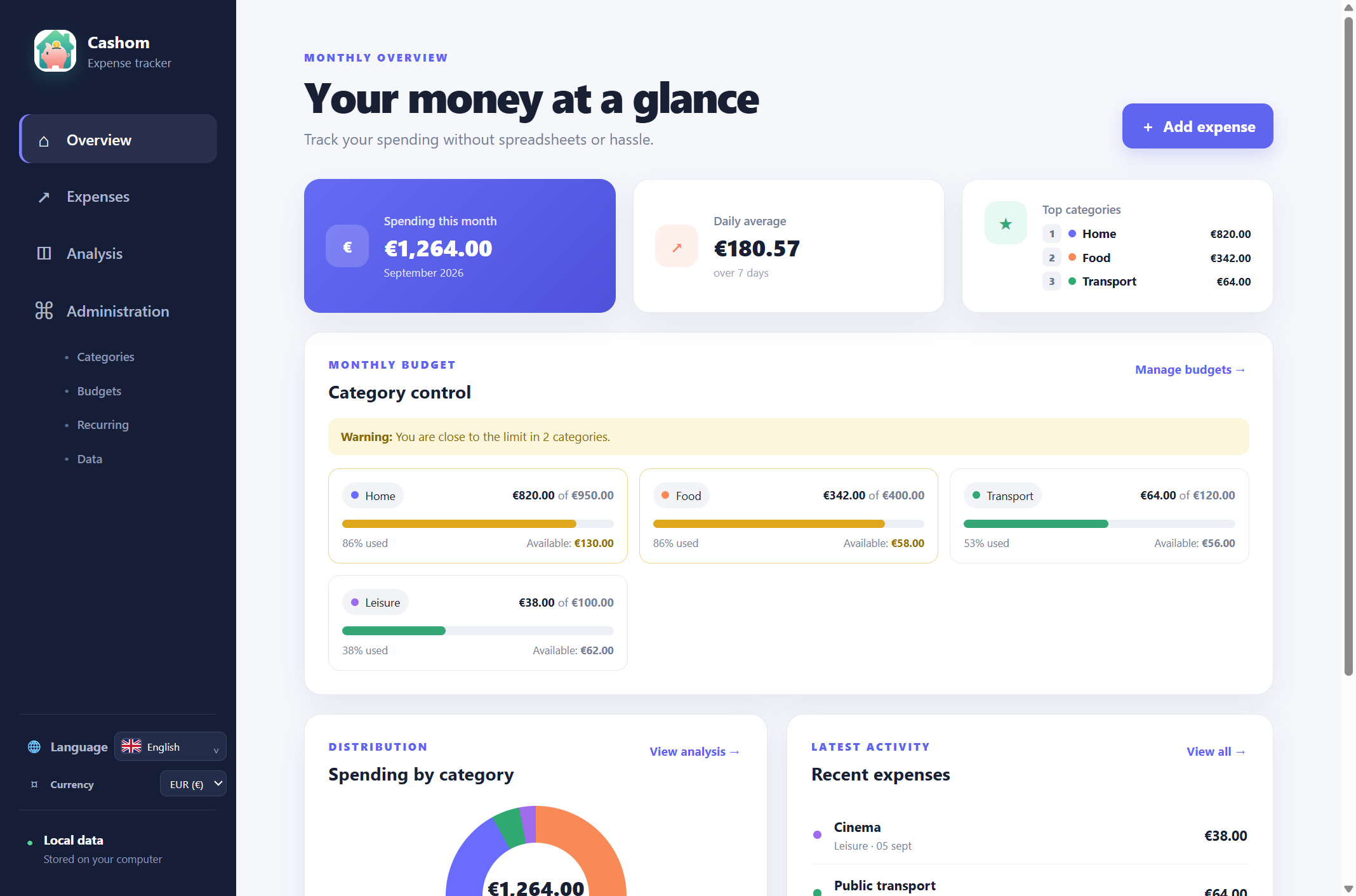
 Cashom
Offline expense tracking for Windows, without a bank connection
Understand local expense tracking in Cashom: no bank credentials, CSV imports, data backups and the limits of offline Store licensing.
Sairasoft · Cashom usage guide
No banking credentials required
Cashom does not ask to access your online banking. You choose which transactions to enter or import from CSV. It suits manual expense tracking, but it does not automatically download transactions or reconcile bank accounts.
Offline records do not mean an unlimited offline licence
Recording and analysing expenses uses local files. The Microsoft Store edition checks its licence and can use the Windows cache while offline. Acquisition, first activation or renewal may require Internet access. Indefinite offline licensing is not guaranteed.
Choose your storage folder
Change the location under Administration → Data. If the selected folder already contains Cashom records, the app asks before opening them without merging your current data. Cashom does not upload your history to its servers. It does not encrypt the files itself, so protect your Windows account and folder access.
Make a complete backup
Close Cashom, then copy the whole data folder, including attachments, to another location. CSV export helps transfer expense records to another tool, but is not a full backup of photos, budgets and recurring rules. Keep backup copies outside your working folder.
OneDrive is a separate choice
If you select a synced folder, OneDrive transfers files according to its settings. Cashom does not merge edits from multiple devices. Wait for syncing to finish and avoid editing the same data on two computers at once. Read the privacy policy for the distinction between the app, website hosting and external services.